Configuring UMP Interface for WebSocket Tunnel (Cloud Architecture Mode)
This section describes how to secure the connection to the Live Platform portal server public IP address using WebSocket tunnel.
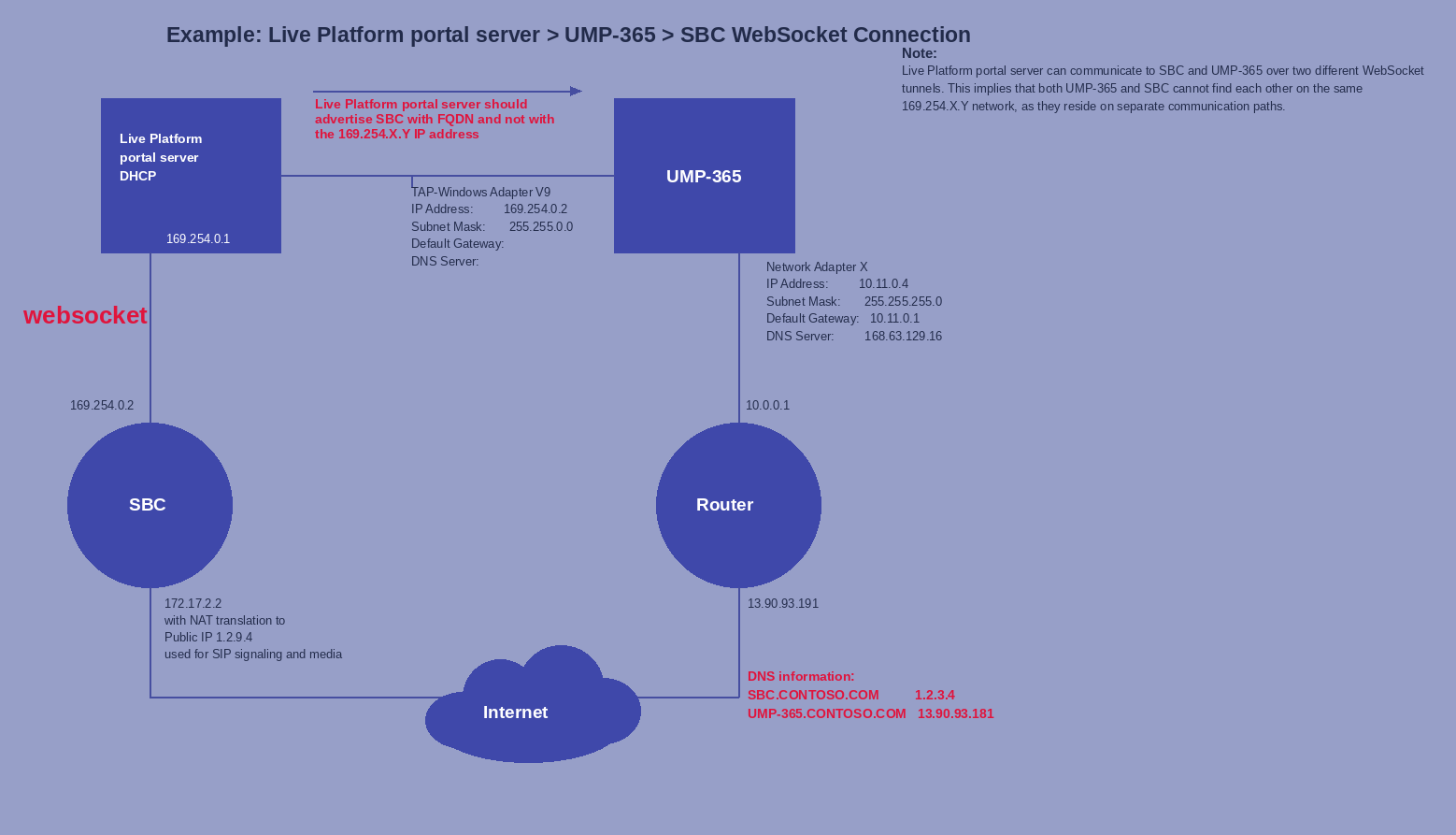
The following figure illustrates the Live Platform portal server > UMP-365 > SBC WebSocket connectivity architecture. Communication between Live Platform portal server and UMP-365 is through the WebSocket tunnel. Live Platform sends the FQDN of the SBC to UMP-365, which UMP-365 resolves to the SBC's IP address so that it can communicate with the SBC directly.
|
1.
|
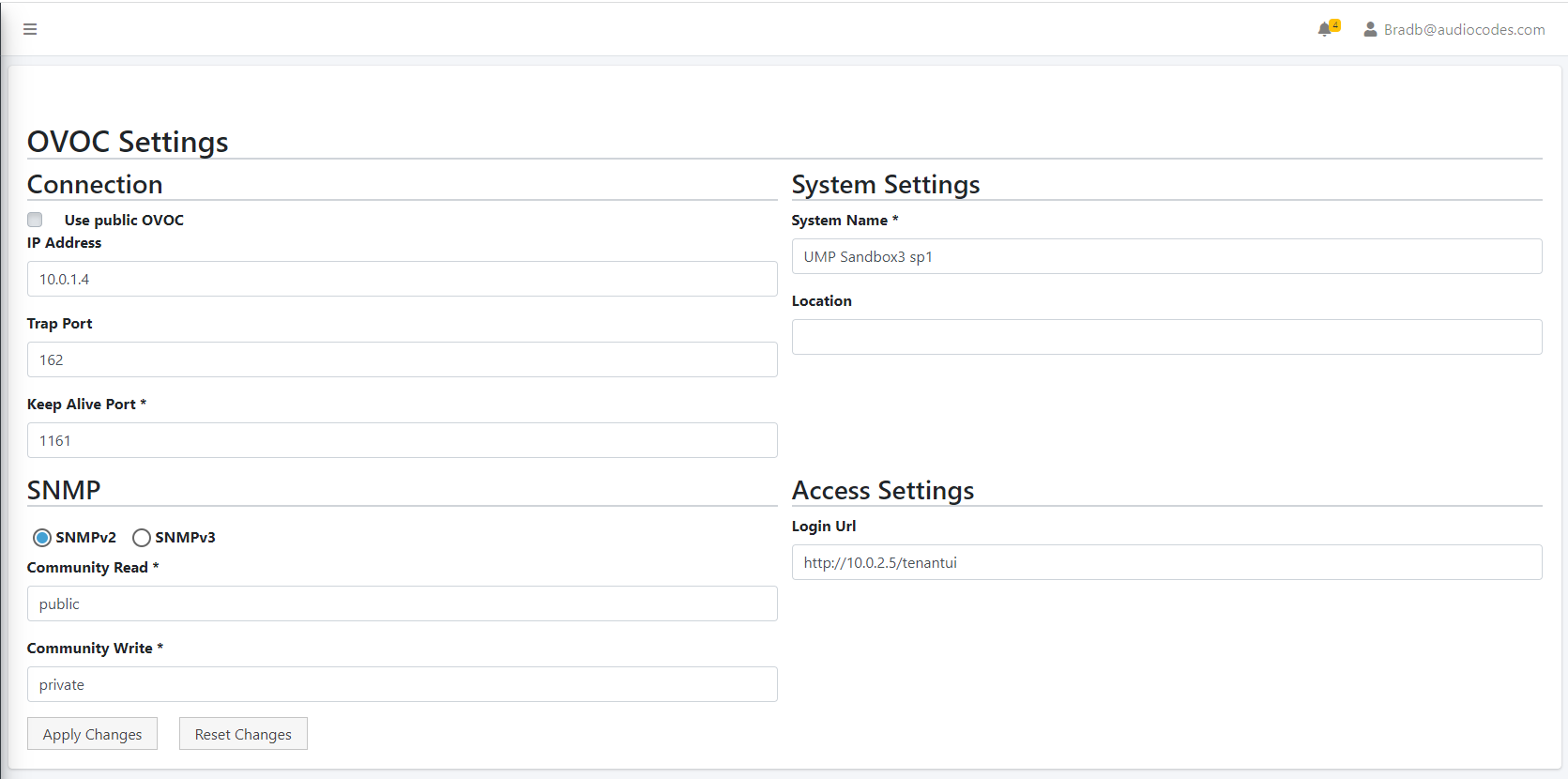
In the Multitenant portal Navigation pane, open the Live Platform portal server Settings page (Configuration > OVOC ). |
|
2.
|
Select the Use Public IP checkbox to connect to the public IP address of the Live Platform portal server on Azure. |
|
3.
|
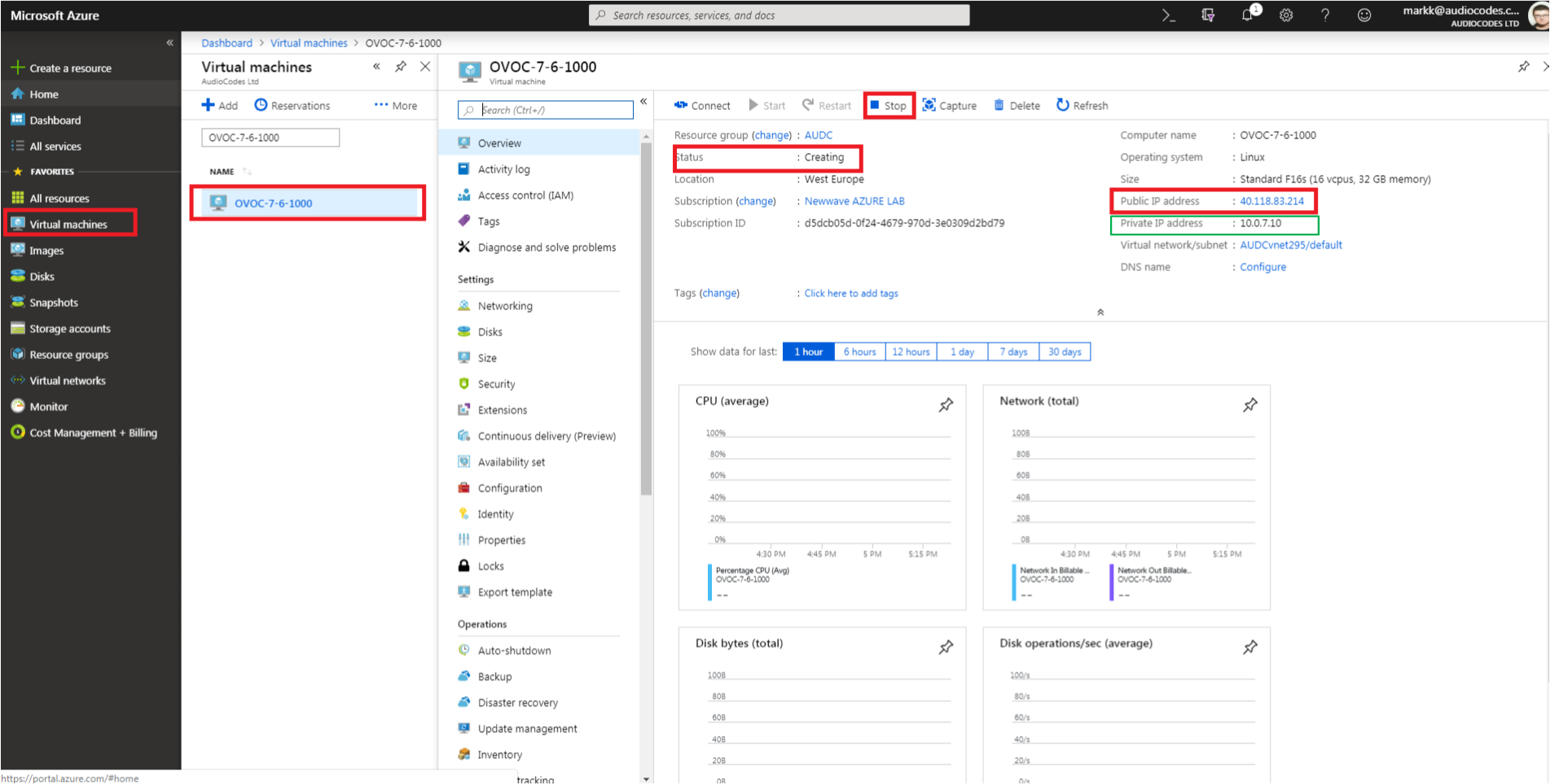
In the Public IP Address, enter the Public IP address of Live Platform portal server on Azure. |
|
4.
|
In the Public User field, enter the username for connecting to Live Platform portal server WebSocket Tunnel (default: VPN). |
|
5.
|
In the Public Password field, enter the Password for connecting to Live Platform portal server WebSocket Tunnel (Cloud Architecture Mode only). Default: 123456 (note that after initial connection is established, you can change this password and add new users to manage this connection, see below). |
The following figure shows where to extract the Live Platform portal server IP address on Azure.
|
7.
|
Enter Keep Alive Port: 1161 |
|
8.
|
Select SNMPv2 and in the Community Read and Community Write fields enter public. |
|
9.
|
Uncheck the ‘SBC monitor’ flag. |
|
10.
|
Enter the following System Settings: |
|
11.
|
For the Login URL (used for logging in to UMP-365 from UMP-365 Device Page in Live Platform portal server and REST connection initiated from OVOC): Enter the Private IP address of the UMP-365 on Azure and not it's Public IP address/FQDN (e.g. http://127.0.0.1/tenantui). |
Once the initial Single Sign-on connection to the UMP-365 Virtual machine is established, the “Login Url” field is automatically updated to http://169.254.x.x ; do not change this value.